Leases
Placing Leases in Service
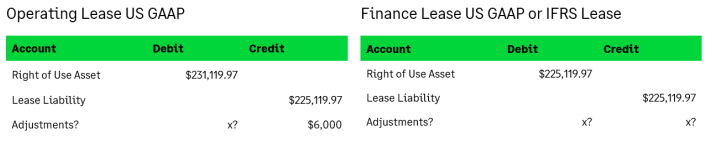
When placing the Lease in Service, Payment Transactions and Journal Entries can start to be created.
To place the Lease in Service:
Go to Lease Accounting > Leases, then click the word Leases.
Next, click on the lease to be put in service.
After clicking into the lease, click the drop-down menu that reads Moreactions and select “Place in Service.”
Enter a Date for when the lease was put in service on the pop-up window. The initial recognition GL Journal Entry will be dated with this date, but the values posted to the GL will be from the Start Date of the lease. It has no further effect on the lease or the future posting of transactions.
Optionally, enter a comment about placing this lease in service.
To see the initial recognition Journal Entry that was created in the General Ledger:
Go to GeneralLedger > JournalEntries, then click ViewTransactions for the Lease Accounting Journal.
The newly created entry should be at the top of the list titled “Lease Put in Service – [Lease Name].”