Setup Unipay
Online Payments Repair Job
Unipay uses two Intacct Platform Objects that are automatically created by a system trigger. This trigger runs whenever a customer record is created or updated, and whenever an invoice is created in Accounts Receivable—either manually by a user or through an Order Entry invoice.
In some cases, this trigger may fail to create the Online Payments Invoice Sync record. Common causes include missing permissions or a broken record relationship resulting from edits made to an Order Entry invoice. When the Online Payments Invoice Sync record is missing, the invoice cannot be sent to the payment processor.
The Online Payments Repair Job is a scheduled or one-time process designed to resolve this issue. It reviews all invoices and creates an Online Payments Invoice Sync record for any invoice where the record is missing. This ensures that affected invoices are properly synced and can be successfully sent to the payment processor.
Configuring the Online Payments Repair Job
To set up the Online Payments Repair Job, begin by navigating to the Unipay Middleware website. Enter your email address and password, then log in.
After logging in, you will see a table listing your available Payment Accounts. On the far right of each row, there are two icons: a pencil icon and a clock/calendar icon. Select the clock/calendar icon for the payment account you want to manage (Figure 1).
This action opens the Job Schedules page, titled with the Payment Account ID and Payment Account Name. On this page, you can view all active scheduled Online Payments Repair Jobs, as well as any previously run one-time jobs.
Please note:
Only one scheduled job can be active per payment account at a time.
You may create multiple one-time jobs.
To edit an existing job, select the pencil icon on the far right of the job row. To disable or delete a job, select the trash can icon or disable the job while editing it.
Creating a New Online Payments Repair Job
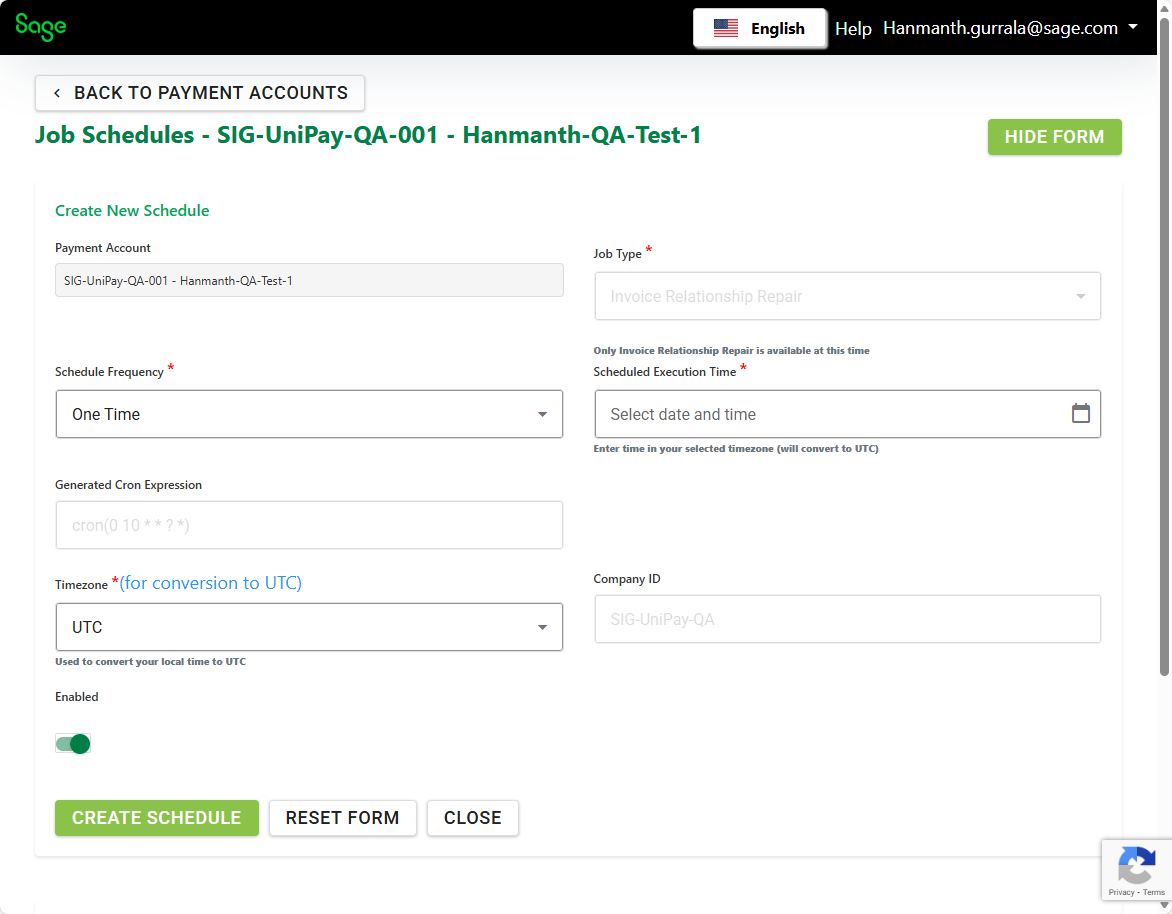
To create a new job, select Create Schedule. A new screen opens with the following configuration options (Figure 2):
Payment Account
Specifies the payment account the job runs against. If you have multiple entity connections or payment accounts, Online Payments Repair Jobs must be managed separately for each account.
Scheduled Frequency
Defines how often the job runs. Available options include one-time, every 15 minutes, every 30 minutes, every hour, every 4 hours, every 8 hours, twice daily, or daily.
Job Type
Currently, the available job type repairs the Online Payments Invoice Sync record. A future release will add support for repairing the Customer Preferences record.
Time
Determines when the job runs. For one-time jobs, you can select the exact run time. For recurring jobs, the system schedules execution based on the selected frequency.
Timezone
Specifies the timezone in which the job should run.
Company ID
Displays the company ID associated with the selected payment account.
Enabled
Allows you to enable or disable the repair job.
Create Schedule
Creates the job once all required fields are completed.
Reset Form
Resets all fields to their default values.
Figure 1
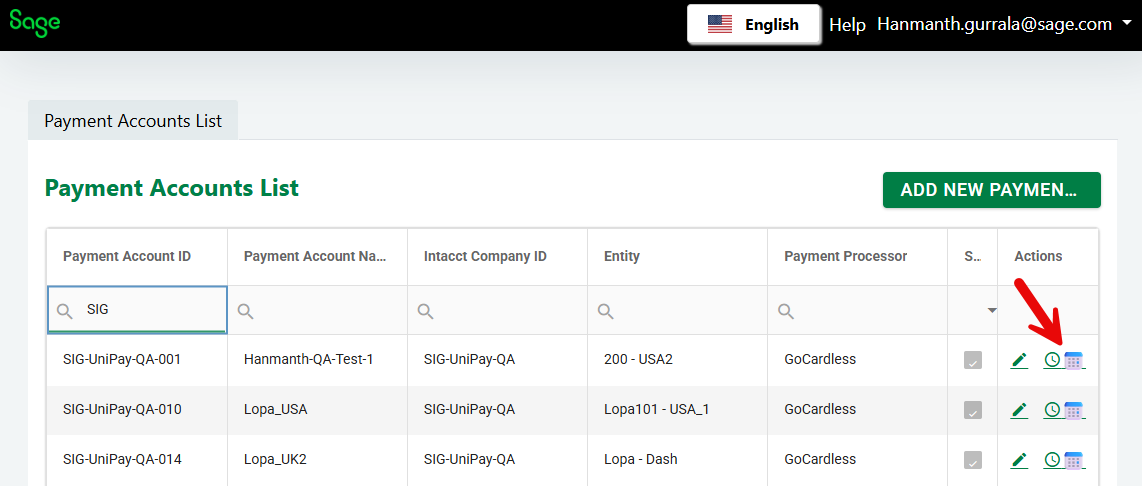
Figure 2